
Text Editor pages give you everything you need to structure your notes: headings, lists, colours, highlights and links.
The formatting toolbar #
Select some text and the formatting toolbar appears above it.
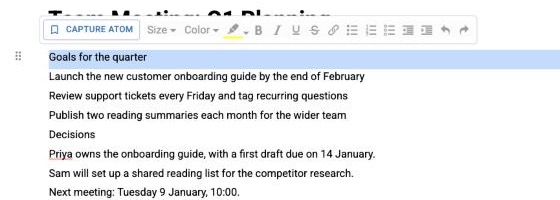
From left to right you can:
- Capture Atom: save the selected text as an Atom you can reuse across your workspace.
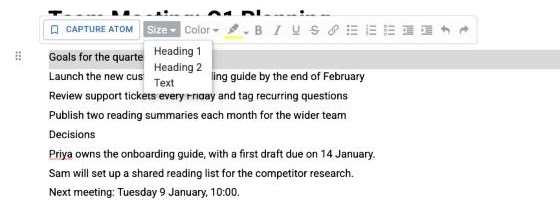
- Size: switch between Heading 1, Heading 2 and Text.
- Color and Highlight: colour the text or give it a background highlight.
- Bold, Italic, Underline and Strikethrough.
- Link: turn the text into a web link.
- Bulleted, numbered and to-do lists, and indent or outdent.
- Undo and redo.
The slash menu #
Type / at the start of a line to add content without leaving the keyboard. Start typing to filter the list, then press Enter or click an option.
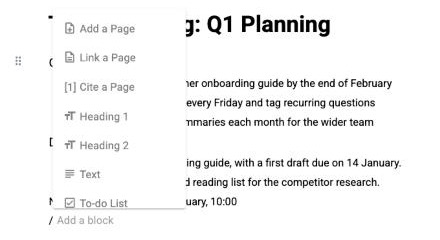
- Add a Page: create a new page and link to it.
- Link a Page: link to a page that already exists.
- Cite a Page: add a citation to one of your sources.
- Heading 1, Heading 2 and Text.
- To-do List, Bulleted List and Numbered List.
Tip: You can also type [[ to link to another page as you write.
Keyboard shortcuts #
- Bold, italic, underline: Ctrl + B, I or U (Cmd on a Mac).
- Highlight: Ctrl + H. Link: Ctrl + K.
- Make text bigger or smaller (Text, Heading 2, Heading 1): Ctrl + . and Ctrl + ,
- Indent and outdent a list item: Tab and Shift + Tab.
- Capture the selected text as an Atom: Ctrl + Space.
Exporting to Word #
Choose Download as Doc from the page’s ⋯ menu to save the page as a Word document. Your page title becomes the document title, and headings come through as larger, bold text that you can restyle in Word.


