
Copy a page to reuse it somewhere else in your workspace, or in another workspace.
Copy and paste a page #
- Right-click the page you want to copy. This works on a row in a table and on a page in your sidebar. In the sidebar you can also hover over the page and click ⋯.
- Choose Copy.
- Right-click where you want the copy to go: another page, a table, or an empty part of the sidebar.
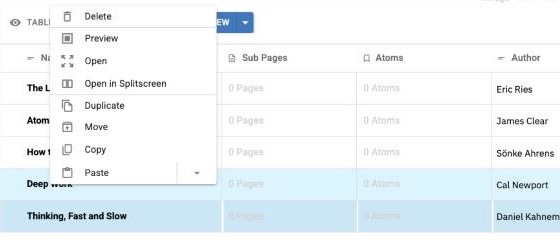
- Choose Paste.
Choose what comes with it #
Click the arrow next to Paste to choose:
- Paste: the page and its content.
- Paste with Atoms: also bring the Atoms captured on the page.
- Paste with Properties: also bring its table column values.
- Paste with Atoms and Properties: bring everything.
Copy between workspaces #
Copy a page in one workspace, switch to another workspace in the same browser, and paste it there.
Duplicate and Move #
- Duplicate makes a copy right next to the original. It is also in the page’s ⋯ menu.
- Move moves the page instead of copying it. Choose its new home in Select New Location.
Tip: To reuse part of a page, select the text and copy it as usual. Whole sections cannot be copied on their own.


