
Make your pages easier to recognise and nicer to read with a cover, a logo, different kinds of content and links between pages.

Add a cover and a logo #
Hover over the page title and two options appear above it: Add Logo and Add Cover.

Cover #
Click Add Cover to add a banner across the top of the page. Hover over it for two buttons:

- Change Cover: use your own image from the web (Insert From URL), Upload a file, or paste one. This is also where you find Remove Cover.
- Reposition: drag the image to choose which part shows, then click Save Position.
Tip: You can also drop an image file straight onto the cover to replace it.
Logo #
Click Add Logo to add a small square image beside the title. Click the logo to change it, or choose Remove Logo.

Emoji #
Click the smiley face to the right of the title to add an emoji to the start of the page name. It shows in the sidebar too.
Add different kinds of content #
Pages are made of sections. Hover just below a section and click the ⊕ at the end of the line.

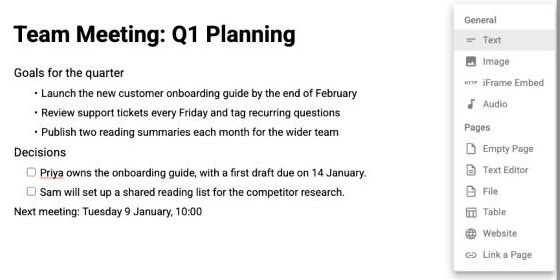
- Text: another block of writing.
- Image: a picture with an optional caption. See Adding Images to your Pages.
- iFrame Embed: paste embed code from a site such as YouTube or Google Maps.
- Audio: add a sound file to play from the page.
- Under Pages: add a new page of any type inside this one, or Link a Page to show an existing page here.
Link to other pages #
Inside your text, type [[ or use / and choose Link a Page, then pick the page you want. Links make it easy to jump between related notes.
More options #
The ⋯ menu at the top right of a page lets you change the Page Color, switch to Small Text, turn Spell Check on or off, and show or hide references and tags in the margin.


