
Add images to your notes to show diagrams, screenshots and photos alongside your writing.
Paste an image straight into your text #
Copy an image and paste it into a Text Editor page, or drag an image file onto the page. It uploads and appears in your text, and you can drag its edges to resize it.
Add an Image section #
For a larger image with a caption, add an Image section:
- Hover just below a section until the line with a ⊕ button appears, then click it.
- Choose Image.
- Choose Insert From URL to use an image from the web, Upload to pick a file, or paste an image you have copied.

Type a caption underneath if you like. It is optional.
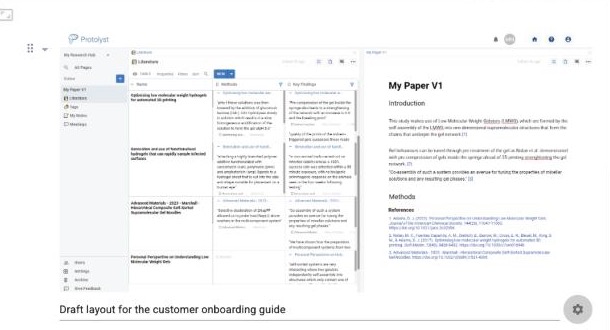
Image settings #
Click the gear icon beside the caption to change the image:
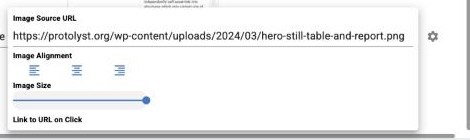
- Image Source URL: swap the picture for a different web address.
- Image Alignment: left, centre or right.
- Image Size: drag the slider to make the image smaller or larger.
- Link to URL on Click: open a web page when someone clicks the image.
Images in tables #
To keep an image for each row of a table, such as a book cover or a product photo, add a property and set its type to Image File (PNG and JPEG images). In a Gallery view, open Properties and choose that column as the Card Image to show it on every card.


