
Skip to content
Protolyst
  • Blog
  • Docs
  • Pricing
  • Login
  • GET STARTED

1. New to Protolyst

  • Citation styles: choose, build or import your own
  • 🚩Start Here
  • Create your First Page
  • Choosing a Page Type
  • Adding Information into your Workspace
  • Simple Work Flow: Capturing and Using Atoms
  • Workspace Layout
  • Capturing Atoms
  • Create a Table
  • Table Views
  • Organising Pages in your Workspace
  • Adding Citations & References to your Writing
  • Download and Export

2. Connecting your Workspace

  • Using Templates in Tables
  • How to Use Sub-Pages
  • How to Use Linked Pages
  • Connecting Atoms across your Workspace
  • Viewing and Organising Atoms in Tables
  • Atom Inheritance in your Workspace
  • How To Use Linked Tables
  • Create Pages From Atoms
  • Using Tags on Protolyst
  • Moving your Files and using Folders on Protolyst
  • Writing with your Atoms

Quick Tips

  • Renaming your Workspace
  • Workspace Keyboard Shortcuts
  • Copy-Pasting Pages
  • Searching your Workspace
  • Equations
  • Download and Export
  • Splitscreen
  • Checklists
  • Dark Mode

Protolyst for Research

  • Organising your Research Notes Efficiently on Protolyst
  • How to Write a Literature Review on Protolyst
  • Academic Reading on Protolyst – Quick Start Guide
  • How to Read a Research Paper
  • How to Build an Academic Reading System
  • Collecting and Organising Information from Research Papers

Protolyst for Notetaking

  • Customising your Pages
  • Adding Images to your Pages
  • Formatting your Notes
  • How to Research and Write an Article Fast on Protolyst
  • Note Taking on Protolyst
  • Simple First Zettelkasten on Protolyst
  • Technical Notetaking – Easily Add & Use Equations in your Notes
  • Cornell Notes for Notetaking on Protolyst

Protolyst for Organisation

  • Life Organisation with the PARA Method
  • Organising your To Dos on Protolyst
  • How to Write a Well Evidenced Essay, Fast
  • How to Manage Hiring & Recruitment on Protolyst
  • How to Write a Blog Post on Protolyst Using Your Atomic Knowledge Base

Protolyst Portals

  • Portals
  • Adding Content to Portals
  • Portal Set Up
  • Home
  • Docs
  • Protolyst for Organisation
  • Life Organisation with the PARA Method
View Categories

Life Organisation with the PARA Method

2 min read

0:00 / 1:57
  • View as Markdown Open this page as plain Markdown (opens in a new tab)
  • Open in ChatGPT Ask questions about this page (opens in a new tab)
  • Open in Claude Ask questions about this page (opens in a new tab)
  • Open in Google AI Studio Ask questions about this page (Google account required) (opens in a new tab)

The PARA Method, created by Tiago Forte of Forte Labs, is a simple way to organise everything you know around what you are working on. Here is how to set it up in Protolyst.

What is PARA? #

PARA stands for the four places your information can live:

  • Projects: short-term efforts with a goal and a deadline, such as Launch the onboarding guide.
  • Areas: ongoing responsibilities with no end date, such as Customer support or Health.
  • Resources: topics and material you are interested in, such as articles, books and notes.
  • Archives: anything from the other three that is no longer active.
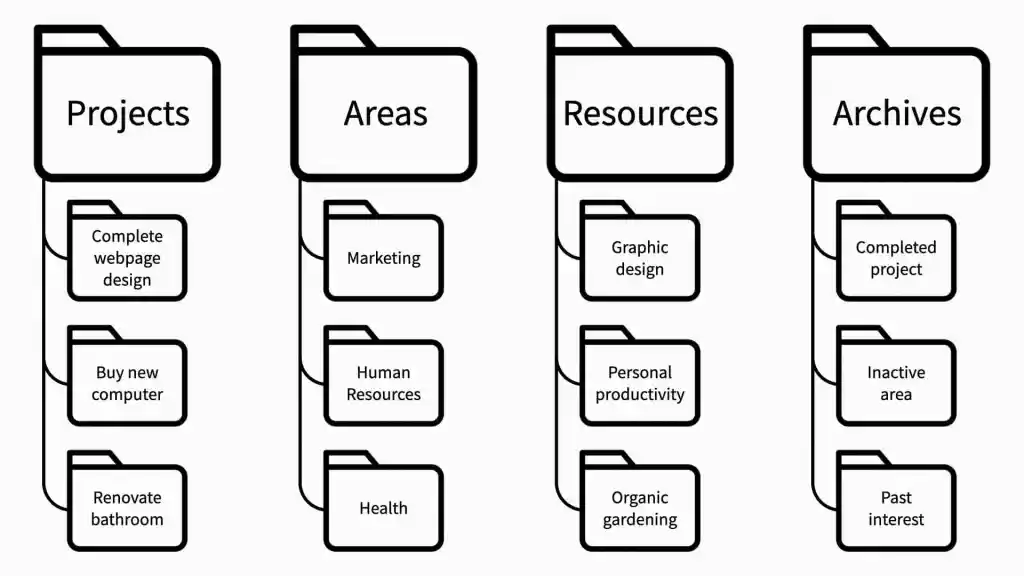
The PARA Method: Projects, Areas, Resources and Archives
The PARA Method

In practice these four overlap: projects grow out of areas, and resources you find are useful for several projects. Protolyst lets you link them together so nothing gets stuck in one folder.

Step 1: Create four tables #

Click the + button in the sidebar four times and choose Table for each page. Name them Projects, Areas, Resources and Archive. Each row you add is a page, so a project can hold its own notes, files and tasks.
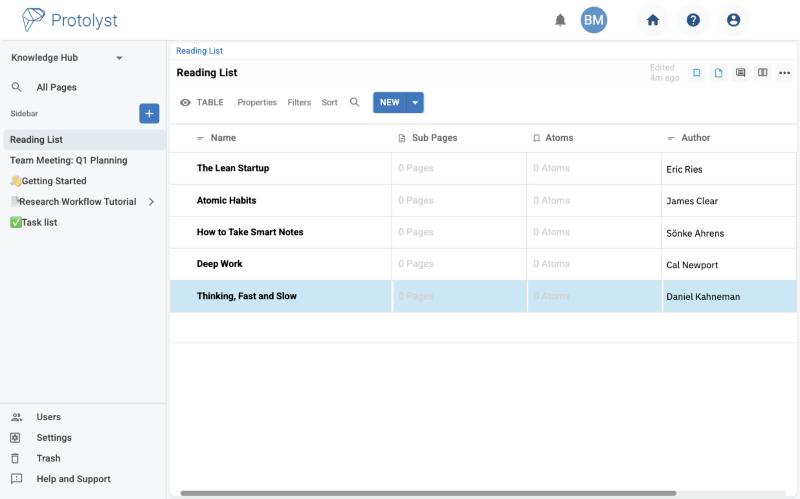
A Reading List table with book titles and an Author column
A Resources table can be as simple as a reading list

Step 2: Add the details you want to track #

Use + Property to add columns. Good starting points:

  • In Projects: a Select property called Status (Not started, In progress, Done) and a Date for the deadline.
  • In Resources: a Multi Select property for topics, so you can filter by subject.

Tip: Switch the Projects table to a Kanban view to see your projects as cards grouped by Status.

Step 3: Link projects, areas and resources #

Add a Linked Table property to Projects and point it at Areas. Each project can then show the area it belongs to. Do the same between Resources and Projects to see which material supports which project.

Step 4: Archive what is finished #

When a project is done, right-click it and choose Move, then pick your Archive table in Select New Location. It stays searchable but out of your way.

Start small: add the projects you are working on this month, then grow your Areas and Resources as you go.

What are your Feelings

Share This Article :

  • Facebook
  • X
  • LinkedIn
  • Pinterest
Still stuck? How can we help?

How can we help?

Updated on November 10, 2026
How to Write a Blog Post on Protolyst Using Your Atomic Knowledge BaseOrganising your To Dos on Protolyst

Powered by BetterDocs

Table of Contents
  • What is PARA?
  • Step 1: Create four tables
  • Step 2: Add the details you want to track
  • Step 3: Link projects, areas and resources
  • Step 4: Archive what is finished
About

You're wasting 1 day a week refinding the golden nuggets of info buried in your files and folders. Protolyst is a networked note taking web app where you can collect and categorise each individual highlight to find and use your most valuable info fast.

Site
  • Docs
  • Blog
  • Pricing
  • Cookie Policy
  • Privacy Policy

Use For

  • Studying
  • Reading and annotating
  • Reading lists
  • Writing reports
  • Research
  • Teams
We use cookies to understand how people use our site so we can improve it. Analytics cookies are only set if you click “Accept All”.
Cookie SettingsReject AllAccept All
Manage consent

Privacy Overview

This website uses cookies to improve your experience while you navigate through the website. Out of these, the cookies that are categorized as necessary are stored on your browser as they are essential for the working of basic functionalities of the website. We also use third-party cookies that help us analyze and understand how you use this website. These cookies will be stored in your browser only with your consent. You also have the option to opt-out of these cookies. But opting out of some of these cookies may affect your browsing experience.
Necessary
Always Enabled
Necessary cookies are absolutely essential for the website to function properly. These cookies ensure basic functionalities and security features of the website, anonymously.
CookieDurationDescription
cookielawinfo-checkbox-analytics11 monthsThis cookie is set by GDPR Cookie Consent plugin. The cookie is used to store the user consent for the cookies in the category "Analytics".
cookielawinfo-checkbox-functional11 monthsThe cookie is set by GDPR cookie consent to record the user consent for the cookies in the category "Functional".
cookielawinfo-checkbox-necessary11 monthsThis cookie is set by GDPR Cookie Consent plugin. The cookies is used to store the user consent for the cookies in the category "Necessary".
cookielawinfo-checkbox-others11 monthsThis cookie is set by GDPR Cookie Consent plugin. The cookie is used to store the user consent for the cookies in the category "Other.
cookielawinfo-checkbox-performance11 monthsThis cookie is set by GDPR Cookie Consent plugin. The cookie is used to store the user consent for the cookies in the category "Performance".
viewed_cookie_policy11 monthsThe cookie is set by the GDPR Cookie Consent plugin and is used to store whether or not user has consented to the use of cookies. It does not store any personal data.
Functional
Functional cookies help to perform certain functionalities like sharing the content of the website on social media platforms, collect feedbacks, and other third-party features.
Performance
Performance cookies are used to understand and analyze the key performance indexes of the website which helps in delivering a better user experience for the visitors.
Analytics
Analytical cookies are used to understand how visitors interact with the website. These cookies help provide information on metrics the number of visitors, bounce rate, traffic source, etc.
Advertisement
Advertisement cookies are used to provide visitors with relevant ads and marketing campaigns. These cookies track visitors across websites and collect information to provide customized ads.
Others
Other uncategorized cookies are those that are being analyzed and have not been classified into a category as yet.
SAVE & ACCEPT