
Protolyst formats your citations and reference list for you. You can choose from 19 standard citation styles, build a style of your own, or import any of the 10,000+ journal and university styles listed at zotero.org/styles. Change the style at any time and every citation on the page updates, including in your Word and PDF downloads.
New to citations in Protolyst? Start with Adding Citations & References to your Writing, then come back here to choose how they look.
Choose a citation style #
- Open a Text Editor Page that has at least one citation. The References section appears at the bottom of the Page.
- Click the References heading to open its settings.
- Open the Citation Style menu and pick a style.

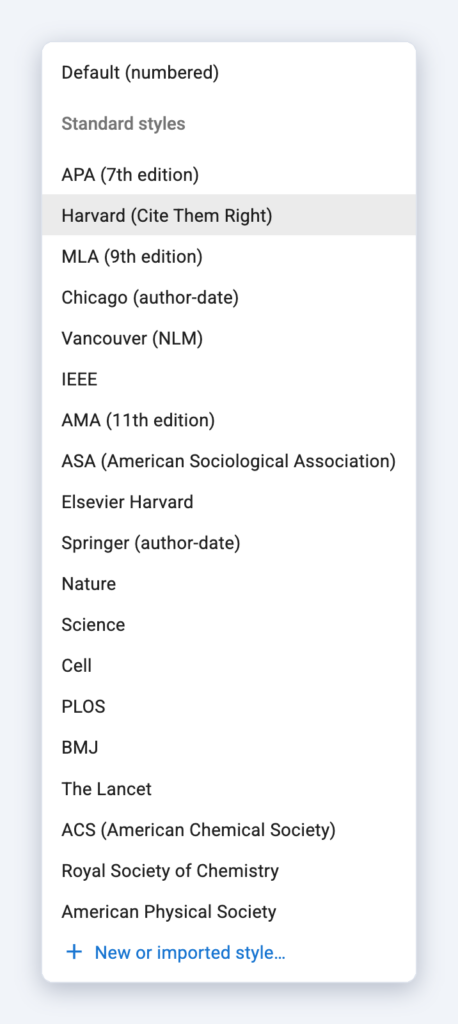
The standard styles are APA (7th edition), Harvard (Cite Them Right), MLA (9th edition), Chicago (author-date), Vancouver, IEEE, AMA, ASA, Elsevier Harvard, Springer (author-date), Nature, Science, Cell, PLOS, BMJ, The Lancet, ACS, the Royal Society of Chemistry and the American Physical Society. Default (numbered) keeps Protolyst’s original style: numbered citations in the text and an APA-style reference list.
What changes when you switch #
Styles come in two main kinds, and Protolyst handles both:
- Author and year styles such as APA and Harvard show citations like (Taschuk and Wilson, 2017) and list references alphabetically by author.
- Numbered styles such as IEEE, Vancouver and Nature show citations like [2] or a superscript number. References are numbered in the order they are first cited, and a source keeps the same number every time you cite it.


Build your own style #
If your team, course or client has its own house style, you can build it in a couple of minutes, with no code.
- Open the Citation Style menu and choose New or imported style…
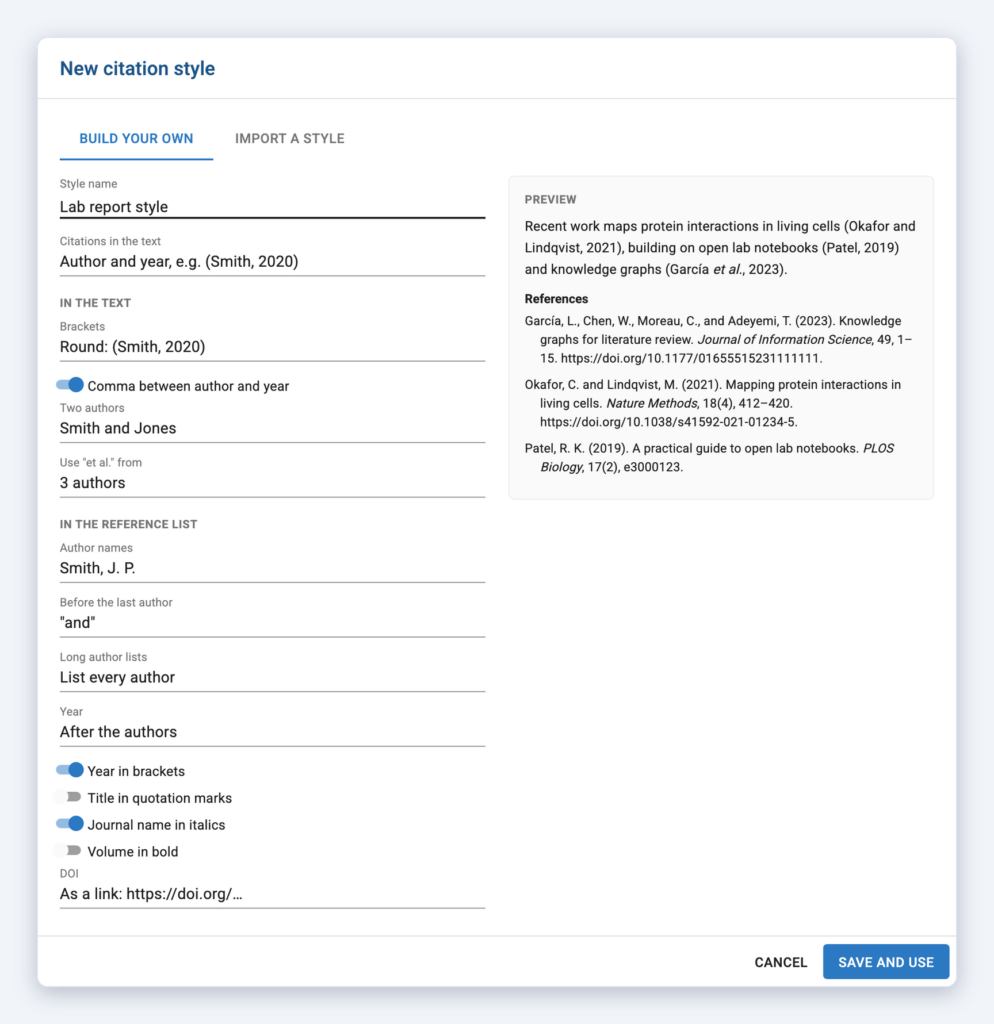
- On the Build your own tab, give the style a name and choose whether citations show the author and year or a number.
- Set the details: brackets, how author names appear, when to use “et al.”, where the year goes, quotation marks, italics and how DOIs are shown.
- Check the preview on the right, which updates as you go, then click Save and use.
Import a journal’s style #
Submitting to a particular journal? Most journals and universities publish their style in the standard CSL format, and over 10,000 of them are listed at zotero.org/styles.
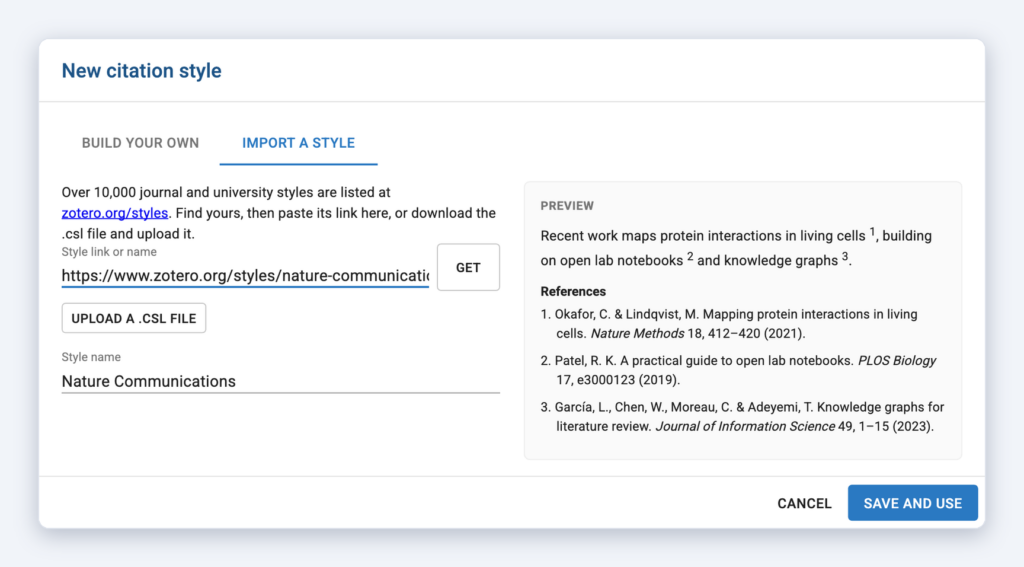
- Find the journal at zotero.org/styles and copy the link to its style, for example
https://www.zotero.org/styles/nature-communications. - In Protolyst, choose New or imported style… and open the Import a style tab.
- Paste the link and click Get. You can also download the .csl file and use Upload a .csl file instead.
- Check the preview, then click Save and use.
Protolyst supports styles that cite in the text, which covers almost all journals. Footnote styles, such as Chicago notes and bibliography, are not supported yet, and Protolyst will tell you if you try to import one.
Edit and reuse your styles #
- Styles you build or import are saved to your workspace, under This project’s styles in the Citation Style menu, so everyone in the workspace can use them.
- To change a style, select it and click the pencil icon next to the menu.
- Each Page keeps its own copy of the style it uses, so it still looks right when you share or publish it.
Citation styles in Word and PDF downloads #
Downloads use the same style as the Page. In Word downloads:
- Each citation links to its entry in the reference list. Hover over a citation to see which source it is, and Ctrl+click (Cmd+click on a Mac) to jump to it.
- Citations look like ordinary text, as most style guides expect. To make them stand out, change Word’s Citation style once and every citation updates.
- Headings you write in Protolyst become Word headings, so they appear in Word’s navigation pane.
Citation columns in Tables #
A Table’s Citation column shows each row’s reference. To change its style, edit the column and pick a style from the same menu. You can use standard styles and your workspace’s own styles there too.
Summary #
- Click the References heading on a Page to choose its citation style.
- Pick from 19 standard styles, or keep the default numbered style.
- Build your own style with a simple form, or import a journal’s style from zotero.org/styles.
- Your styles are shared across the workspace and carry through to Word and PDF downloads.


