
Skip to content
Protolyst
  • Blog
  • Docs
  • Pricing
  • Login
  • GET STARTED

1. New to Protolyst

  • 🚩Start Here
  • Create your First Page
  • Choosing a Page Type
  • Adding Information into your Workspace
  • Simple Work Flow: Capturing and Using Atoms
  • Workspace Layout
  • Capturing Atoms
  • Create a Table
  • Table Views
  • Organising Pages in your Workspace
  • Adding Citations & References to your Writing
  • Citation styles: choose, build or import your own
  • Download and Export
  • The Protolyst API: connect your workspace to n8n, Claude and more

2. Connecting your Workspace

  • Using Templates in Tables
  • How to Use Sub-Pages
  • How to Use Linked Pages
  • Connecting Atoms across your Workspace
  • Viewing and Organising Atoms in Tables
  • Atom Inheritance in your Workspace
  • How To Use Linked Tables
  • Create Pages From Atoms
  • Using Tags on Protolyst
  • Moving your Files and using Folders on Protolyst
  • Writing with your Atoms

Quick Tips

  • Renaming your Workspace
  • Workspace Keyboard Shortcuts
  • Copy-Pasting Pages
  • Searching your Workspace
  • Equations
  • Download and Export
  • Splitscreen
  • Checklists
  • Dark Mode

Protolyst for Research

  • Organising your Research Notes Efficiently on Protolyst
  • How to Write a Literature Review on Protolyst
  • Academic Reading on Protolyst – Quick Start Guide
  • How to Read a Research Paper
  • How to Build an Academic Reading System
  • Collecting and Organising Information from Research Papers

Protolyst for Notetaking

  • Customising your Pages
  • Adding Images to your Pages
  • Formatting your Notes
  • How to Research and Write an Article Fast on Protolyst
  • Note Taking on Protolyst
  • Simple First Zettelkasten on Protolyst
  • Technical Notetaking – Easily Add & Use Equations in your Notes
  • Cornell Notes for Notetaking on Protolyst

Protolyst for Organisation

  • Life Organisation with the PARA Method
  • Organising your To Dos on Protolyst
  • How to Write a Well Evidenced Essay, Fast
  • How to Manage Hiring & Recruitment on Protolyst
  • How to Write a Blog Post on Protolyst Using Your Atomic Knowledge Base

Protolyst Portals

  • Portals
  • Adding Content to Portals
  • Portal Set Up
  • Home
  • Docs
  • 2. Connecting your Workspace
  • Moving your Files and using Folders on Protolyst
View Categories

Moving your Files and using Folders on Protolyst

3 min read

0:00 / 3:48
  • View as Markdown Open this page as plain Markdown (opens in a new tab)
  • Open in ChatGPT Ask questions about this page (opens in a new tab)
  • Open in Claude Ask questions about this page (opens in a new tab)
  • Open in Google AI Studio Ask questions about this page (Google account required) (opens in a new tab)

Every file you upload, notes page you create, anything you add into your workspace is classed as a Page in Protolyst. Here, we’re going to look at how to move your Files (Pages) and use Folders on Protolyst to organise your workspace

Creating a Folder on Protolyst #

To use Folders to put notes, files and other information into, you need to first create a Folder. On Protolyst you can use the Plus button at the top of the sidebar to add new Pages in your Workspace, and then use your new Page as a Folder.
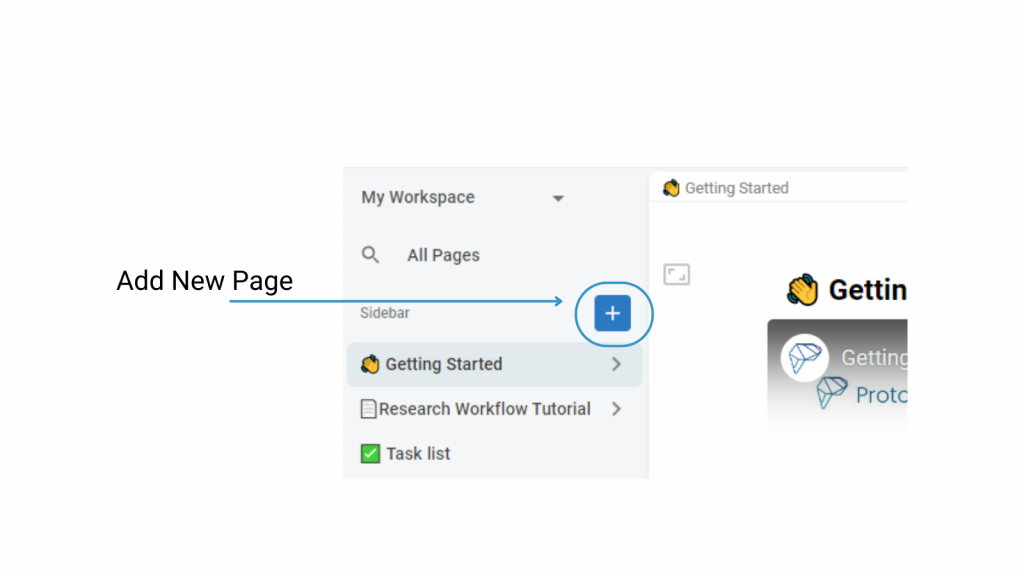
Adding a new Page on Protolyst.  There is a square blue plus button at the top of the left hand sidebar to add new Pages into your Workspace
The Add New Page button is located at the top of the Sidebar down the left side of your workspace

When you add a new Page into your Workspace you are presented with Page Setup options. Add a Title for your Folder in the ‘Untitled’ text section.

New Page setup options on Protolyst

Underneath the Title you can then select from the different Page Types on Protolyst or leave the Page as it is. Leaving the Page as is, without selecting from the available options, leaves this Page like a typical Folder, which you can use to contain further Pages in your workspace.

Page Types available on Protolyst. Add your own notes, create Tables, upload your files and import web pages

By default all new Pages added with the plus button will appear in your left hand sidebar.

Repeat this process to add as many Folders as you like into your workspace.

Making Notes #

Now you have a Folder or more created in your workspace, let’s add your notes and sources of information!

Add a New Notes Page into your workspace using the Plus Button at the top of the sidebar. Choose the first option from the list of Page Types – ‘Text Editor’ – to set up a Notes Page. Add a Title and enter your Notes into the Page

After you’ve added some pages into your workspace, your Sidebar might look like this:

Sidebar on Protolyst
Sidebar on Protolyst populated with some Notes and Folders

Moving Pages into your Folders on Protolyst #

By default all new Pages you add to your workspace will appear in the Sidebar. This will quickly get full and become hard to navigate.  

You can move any Page in your Workspace into a Folder in a couple of ways:

  • Drag and Drop your Page into your Folder in the Sidebar
  • Use Page Options (three dots next to the Page Title in your Sidebar), select Move Location and choose your Folder

You can also access the Move Location option through the 3 dot Page Options Menu in the Top Right of your open Page

Protolyst Page Options accessed through the 3 dot menu in the top right of the Page also gives you the Move Location Option

Auto Add New Pages into a Folder on Protolyst #

There is also an option in your Settings to configure your workspace to automatically add any new pages you add to your Workspace using the + Page button into a preferred location.

Open Settings at the bottom of your left hand Sidebar and then set the Default Page Location from the Pages in your Workspace to your chosen Folder

Protolyst Settings. Change the Default Page Location to another Page in your Workspace and this will be the Page, or Folder on Protolyst into which any New Pages you add to your Workspace will appear
In your Workspace Settings, (accessed at the bottom of your left hand sidebar), change the Default Page Location to another Page in your Workspace and this will be the Page in which any New Pages you add to your Workspace will appear

You can set any folder of your choice as the default location for all your new pages, so that they will appear in that Folder and not get added into your Sidebar.

Adding a Page to a Folder Directly #

You can also navigate into your Folder of choice and add new Pages from there.

Open your Folder and navigate to the Pages Box. Use the Plus Button in the top left of the Pages Box to add a New Page. You’ll be prompted to select a Page Type.

Pages Box in a Blank Page on Protolyst.  Use the options here to add Pages into your Folder on Protolyst.
Use the Pages Box in your Folder to add Pages directly into your Folder.

If you are uploading Files from your computer to this Folder, you can drag and drop them from your file explorer into the Pages Box and they will start to upload to your Workspace.

What are your Feelings

Share This Article :

  • Facebook
  • X
  • LinkedIn
  • Pinterest
Still stuck? How can we help?

How can we help?

Updated on July 6, 2023
Using Tags on ProtolystWriting with your Atoms

Powered by BetterDocs

Table of Contents
  • Creating a Folder on Protolyst
  • Making Notes
  • Moving Pages into your Folders on Protolyst
  • Auto Add New Pages into a Folder on Protolyst
  • Adding a Page to a Folder Directly
About

You're wasting 1 day a week refinding the golden nuggets of info buried in your files and folders. Protolyst is a networked note taking web app where you can collect and categorise each individual highlight to find and use your most valuable info fast.

Site
  • Docs
  • Blog
  • Pricing
  • Cookie Policy
  • Privacy Policy

Use For

  • Studying
  • Reading and annotating
  • Reading lists
  • Writing reports
  • Research
  • Teams
We use cookies to understand how people use our site so we can improve it. Analytics cookies are only set if you click “Accept All”.
Cookie SettingsReject AllAccept All
Manage consent

Privacy Overview

This website uses cookies to improve your experience while you navigate through the website. Out of these, the cookies that are categorized as necessary are stored on your browser as they are essential for the working of basic functionalities of the website. We also use third-party cookies that help us analyze and understand how you use this website. These cookies will be stored in your browser only with your consent. You also have the option to opt-out of these cookies. But opting out of some of these cookies may affect your browsing experience.
Necessary
Always Enabled
Necessary cookies are absolutely essential for the website to function properly. These cookies ensure basic functionalities and security features of the website, anonymously.
CookieDurationDescription
cookielawinfo-checkbox-analytics11 monthsThis cookie is set by GDPR Cookie Consent plugin. The cookie is used to store the user consent for the cookies in the category "Analytics".
cookielawinfo-checkbox-functional11 monthsThe cookie is set by GDPR cookie consent to record the user consent for the cookies in the category "Functional".
cookielawinfo-checkbox-necessary11 monthsThis cookie is set by GDPR Cookie Consent plugin. The cookies is used to store the user consent for the cookies in the category "Necessary".
cookielawinfo-checkbox-others11 monthsThis cookie is set by GDPR Cookie Consent plugin. The cookie is used to store the user consent for the cookies in the category "Other.
cookielawinfo-checkbox-performance11 monthsThis cookie is set by GDPR Cookie Consent plugin. The cookie is used to store the user consent for the cookies in the category "Performance".
viewed_cookie_policy11 monthsThe cookie is set by the GDPR Cookie Consent plugin and is used to store whether or not user has consented to the use of cookies. It does not store any personal data.
Functional
Functional cookies help to perform certain functionalities like sharing the content of the website on social media platforms, collect feedbacks, and other third-party features.
Performance
Performance cookies are used to understand and analyze the key performance indexes of the website which helps in delivering a better user experience for the visitors.
Analytics
Analytical cookies are used to understand how visitors interact with the website. These cookies help provide information on metrics the number of visitors, bounce rate, traffic source, etc.
Advertisement
Advertisement cookies are used to provide visitors with relevant ads and marketing campaigns. These cookies track visitors across websites and collect information to provide customized ads.
Others
Other uncategorized cookies are those that are being analyzed and have not been classified into a category as yet.
SAVE & ACCEPT