
Your Protolyst workspace now has an API. With one key you can read pages, create them, add text, fill in properties and build fully referenced documents from outside the app: from a script, from automation tools like n8n or Zapier, or straight from Claude.
This guide covers getting your key, every command, three ready-made recipes, and how to let Claude write into your workspace.
Plan: the API and webhook buttons are part of the Pro and Team plans.
1. Get your API key #
- Open your workspace and go to Settings > API in the sidebar. (Only workspace admins see this.)
- Click Generate API Key for Workspace.
- Click Show, then Copy.
Treat the key like a password. Anyone who has it can read and change everything in that workspace. If it ever leaks, click Refresh to make a new one; the old one stops working straight away.
One key belongs to one workspace. If you have several workspaces, generate a key in each.
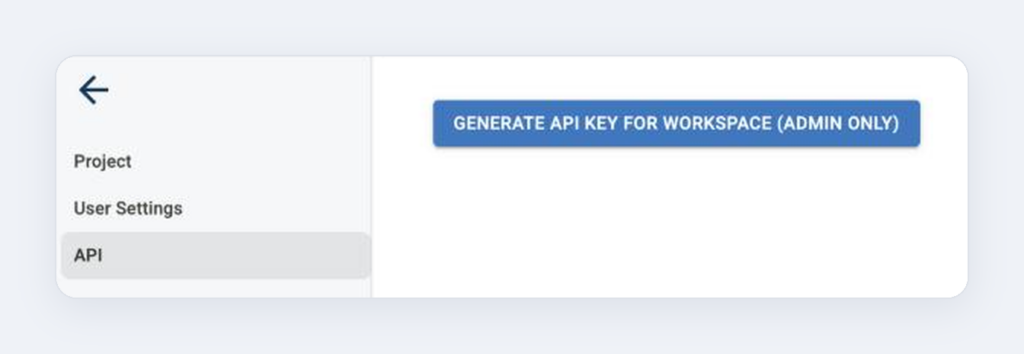 Settings > API in a Pro or Team workspace. Only workspace admins see this section.
2. Find a page’s ID #
Most commands need a page ID. Open the page in Protolyst and look at the address bar:
https://app.protolyst.org/<workspace-id>/<page-id>The last part is the page ID. You can also look pages up with /findPages (below).
3. How requests work #
Every command is a web request to:
https://europe-west1-protolyst.cloudfunctions.net/api- Send your key in an
x-api-keyheader (recommended: it keeps the key out of logs and browser history).Authorization: Bearer <key>also works, and so does anapiKeyfield in the query string or JSON body. - GET commands take their other inputs as query parameters.
- POST commands take a JSON body.
- Errors come back as
{"message": "..."}with a 400 (something missing or wrong), 403 (bad key, or the workspace isn’t on a paid plan) or 404 (page not found).
The examples use curl and assume you’ve saved your key in your terminal first:
export PROTOLYST_API_KEY="paste-your-key-here"
export PROTOLYST_API="https://europe-west1-protolyst.cloudfunctions.net/api"
4. The commands #
Reading #
GET /findPages: list or search pages #
| Parameter | Required | What it does |
|---|---|---|
parentId | no | Look only at this page’s subpages. Leave it out for your top-level (sidebar) pages. |
searchQuery | no | Only return pages whose title or properties contain this text. |
curl -G "$PROTOLYST_API/findPages" \
  -H "x-api-key: $PROTOLYST_API_KEY" \
  --data-urlencode "searchQuery=reading list"
Returns an object keyed by page ID, each with its pageTitle (and, when you searched, which properties matched).
GET /searchPages: search inside pages #
| Parameter | Required | What it does |
|---|---|---|
query | yes | Words to look for. Every word must appear in the page’s title or text, in any order. |
limit | no | Most results to return, 1 to 50 (default 20). |
curl -G "$PROTOLYST_API/searchPages" \
  -H "x-api-key: $PROTOLYST_API_KEY" \
  --data-urlencode "query=sleep memory consolidation"
Returns {"total": 3, "results": [{"pageId", "title", "pageUrl", "snippet"}]}, best matches first.
GET /getPage: read a page’s text #
| Parameter | Required | What it does |
|---|---|---|
pageId | yes | The page to read. |
curl -G "$PROTOLYST_API/getPage" \
  -H "x-api-key: $PROTOLYST_API_KEY" \
  --data-urlencode "pageId=PAGE_ID"
Returns the page as plain text. Works for text pages and uploaded PDFs.
GET /getReferences: list a page’s sources and their claims #
| Parameter | Required | What it does |
|---|---|---|
pageId | yes | The page (an essay, report or reading list). |
Returns every source the page uses (its reference subpages, and any page it cites), each with its reference details and its atoms: the claims highlighted from that source, with the IDs you need to cite them.
{
  "pageId": "ESSAY_PAGE_ID",
  "sources": [
    {
      "pageId": "REF_PAGE_ID",
      "title": "Array programming with NumPy",
      "reference": {"authors": [{"first": "Charles R.", "last": "Harris"}], "journal": "Nature", "year": "2020", "doi": "10.1038/s41586-020-2649-2"},
      "atoms": [{"id": "ATOM_ID", "text": "NumPy is the primary array programming library for Python.", "citedHere": true}]
    }
  ],
  "ownAtoms": []
}
GET /getRelatedPages: gather everything around a page #
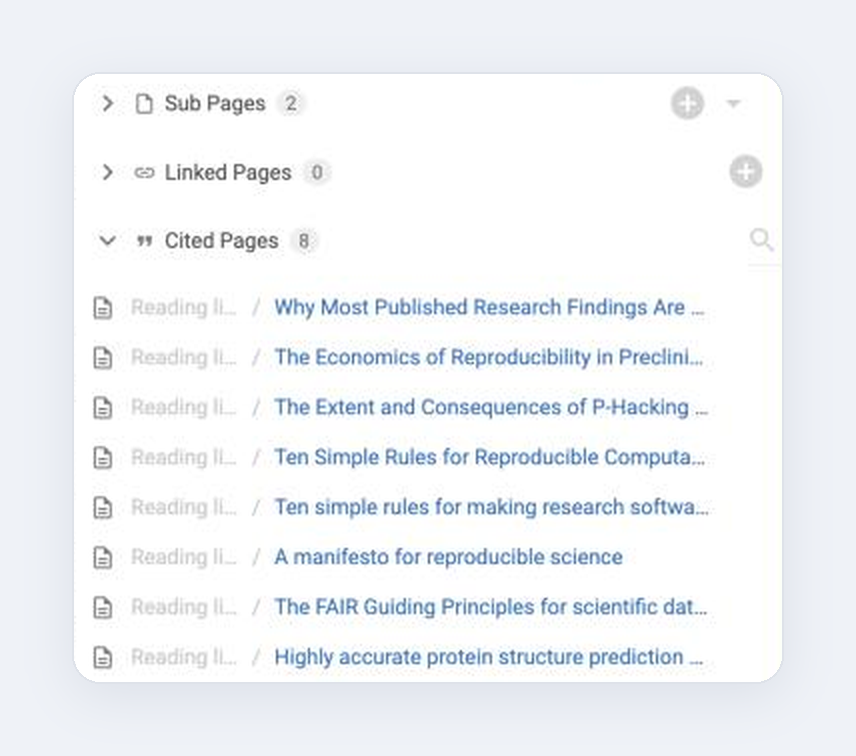
Writing a report, or answering a question from a project? This returns a page’s subpages, its linked pages (pages it links to and pages that link to it) and the pages it cites, each with its text and, for sources, its reference details. One call instead of dozens.
| Parameter | Required | What it does |
|---|---|---|
pageId | yes | The page at the centre: a project, report or reading list. |
include | no | Which related pages, as a comma list: subpages, linked, cited (default all three). |
text | no | false to return titles and links only. |
maxChars | no | Most characters of text per page, 500 to 50,000 (default 10,000). |
curl -G "$PROTOLYST_API/getRelatedPages" \
  -H "x-api-key: $PROTOLYST_API_KEY" \
  --data-urlencode "pageId=REPORT_PAGE_ID" \
  --data-urlencode "include=cited,linked"
{
"counts": {"subpages": 4, "linked": 2, "cited": 7},
"pages": [
{
"pageId": "REF_PAGE_ID",
"title": "Array programming with NumPy",
"relations": ["subpage", "cited"],
"reference": {"journal": "Nature", "year": "2020", "doi": "10.1038/s41586-020-2649-2"},
"text": "Source: https://doi.org/...\nNumPy is the primary array programming library for Python.",
"textTruncated": false
}
]
}A page that is related in more than one way appears once, with all its relations. Up to 100 pages and 300,000 characters of text per call.
GET /getPropIds: list a page’s properties #
| Parameter | Required | What it does |
|---|---|---|
pageId | yes | A page in a database (table). |
Returns each property’s ID, name and type (and the options for single-select properties). Use the IDs with /getProps and /amendProps.
POST /getProps: read property values #
curl -X POST "$PROTOLYST_API/getProps" -H "Content-Type: application/json" \
  -H "x-api-key: $PROTOLYST_API_KEY" -d '{
  "pageId": "PAGE_ID",
  "propIds": ["PROP_ID_1", "PROP_ID_2"]
}'
Returns {"properties": {"PROP_ID_1": {"name": ..., "type": ..., "value": ...}}}. Add "removeNewLines": true to flatten multi-line text.
Writing #
POST /createPage: make a new page #
| Field | Required | What it does |
|---|---|---|
pageTitle | yes | The title. |
parentId | no | Make it a subpage of this page. Leave it out to put it in the sidebar. |
pageContent | no | Plain text for the page body. |
curl -X POST "$PROTOLYST_API/createPage" -H "Content-Type: application/json" \
  -H "x-api-key: $PROTOLYST_API_KEY" -d '{
  "parentId": "PAGE_ID",
  "pageTitle": "Meeting notes, 24 November",
  "pageContent": "Agreed to ship the API guide this week."
}'
Returns {"pageId": "...", "pageUrl": "https://app.protolyst.org/..."}.
POST /appendToPage: add text to a page #
| Field | Required | What it does |
|---|---|---|
pageId | yes | The page to add to. |
content | yes | Plain text. |
newSection | no | true (default) adds it as a new section; false adds it to the end of the last section. |
curl -X POST "$PROTOLYST_API/appendToPage" -H "Content-Type: application/json" \
  -H "x-api-key: $PROTOLYST_API_KEY" -d '{
  "pageId": "PAGE_ID",
  "content": "Follow-up: send the draft to Sam.",
  "newSection": false
}'
POST /tagPage: link a page to other pages #
Adds pages to a page’s Linked Pages. Existing links are kept.
curl -X POST "$PROTOLYST_API/tagPage" -H "Content-Type: application/json" \
  -H "x-api-key: $PROTOLYST_API_KEY" -d '{
  "pageId": "PAGE_ID",
  "pageTags": ["OTHER_PAGE_ID", "ANOTHER_PAGE_ID"]
}'
POST /amendProps: set property values #
curl -X POST "$PROTOLYST_API/amendProps" -H "Content-Type: application/json" \
  -H "x-api-key: $PROTOLYST_API_KEY" -d '{
  "pageId": "PAGE_ID",
  "props": [
    {"propId": "STATUS_PROP_ID", "value": "OPTION_ID"},
    {"propId": "RATING_PROP_ID", "value": 4},
    {"propId": "DONE_PROP_ID", "value": true}
  ]
}'
Supported property types and values:
| Property type | Value |
|---|---|
| Text | a string (a URL also fetches the link preview) |
| Number, Rating | a number |
| Checkbox | true or false |
| Date | a timestamp in milliseconds, e.g. 1764000000000 |
| Single select | the option’s ID (from /getPropIds) |
Returns {"success": true, "results": [...]}, with a reason for any property it skipped.
Building referenced documents #
These commands let a script (or Claude) build a document the way you would by hand in Protolyst: capture each source, highlight the passages you rely on as atoms, then write text that cites them.
POST /addReference: capture a source #
Creates a subpage for one source and captures the source itself: Protolyst fetches it (from sourceUrl, the reference’s url, or its DOI) and saves it as a web page or, if it’s a PDF, as a PDF page, exactly as if you had imported or uploaded it by hand. Atoms are exact quotes from the source, highlighted where they appear, on the web page or on the PDF itself. A quote that isn’t in the source word for word is refused, so every citation points at the source’s own words.
| Field | Required | What it does |
|---|---|---|
parentId | yes | The page the source belongs to (your essay, report or reading list). |
reference | yes | The source’s details. A doi on its own is enough: title, authors, journal and year are looked up for you. You can also give title, authors ([{"first": "Ada", "last": "Lovelace"}], or a plain string for an organisation), journal, year, volume, issue, pages, url. |
sourceUrl | no | The source’s address: an article page or a PDF. Defaults to the reference’s url, then https://doi.org/ plus its DOI. If the publisher blocks automated access, an open-access copy on PubMed Central is used when there is one. |
atoms | no | Up to 50 exact quotes from the source, copied word for word. You can also add them later with /addAtoms, after reading the captured page. |
title | no | The subpage title. Defaults to the reference’s title. |
linkInParent | no | true (default) adds a link to the new subpage at the end of the parent page. |
curl -X POST "$PROTOLYST_API/addReference" -H "Content-Type: application/json" \
  -H "x-api-key: $PROTOLYST_API_KEY" -d '{
  "parentId": "ESSAY_PAGE_ID",
  "reference": {"doi": "10.1371/journal.pcbi.1003285"},
  "atoms": [
    "Whenever a result may be of potential interest, keep track of how it was produced."
  ]
}'
Returns the new pageId and pageUrl, the captured source, each atom’s id (keep these: you cite with them next), and any quotes it couldn’t find in atomsNotFound.
If the source can’t be captured (some sites need a login or block automated access), the page is still created with the reference details and a link, sourceProblem says why, and no atoms are made: cite that page as a whole. PDFs need readable text: a scanned PDF without text can’t be quoted.
POST /addAtoms: quote a captured source #
Read a captured source with /getPage (add asText=true to get a PDF’s text rather than the file), then highlight the sentences you rely on. Works on captured web pages and PDF pages. Each quote must appear in the source word for word; any that don’t come back in atomsNotFound.
curl -X POST "$PROTOLYST_API/addAtoms" -H "Content-Type: application/json" \
  -H "x-api-key: $PROTOLYST_API_KEY" -d '{
  "pageId": "SOURCE_PAGE_ID",
  "atoms": ["If the step is performed by a computer program, the critical details include the name and version of the program, as well as the exact parameters and inputs that were used."]
}'
POST /appendCitedText: write text with citations #
Adds text to the end of a page, keeping what’s already there. Write citations inline:
| Markup | Result |
|---|---|
[[cite:PAGE_ID]] | Cites a reference page |
[[cite:PAGE_ID#ATOM_ID]] | Cites one specific claim (atom) from it |
**bold** | Bold |
# , ## or ### at the start of a line | Heading (large, medium or small) |
curl -X POST "$PROTOLYST_API/appendCitedText" -H "Content-Type: application/json" \
  -H "x-api-key: $PROTOLYST_API_KEY" -d '{
  "pageId": "ESSAY_PAGE_ID",
  "content": "## Background\nMost scientific Python work rests on NumPy [[cite:REF_PAGE_ID#ATOM_ID]]."
}'
The page’s reference list builds itself from the citations. If a cited page or atom doesn’t exist, nothing is written and the reply lists what’s missing.
POST /replacePageText: rewrite a page’s text #
Replaces the text of a page with new content, in the same markup as /appendCitedText. Use it to correct or rewrite something written earlier.
| Field | Required | What it does |
|---|---|---|
pageId | yes | The page. |
content | yes | The new text. An empty string clears it. |
sectionId | no | Needed only when the page has more than one text section: the reply to a call without it lists the sections, with a preview of each. Use "all" to put the content in the first section and empty the rest. |
curl -X POST "$PROTOLYST_API/replacePageText" -H "Content-Type: application/json" \
  -H "x-api-key: $PROTOLYST_API_KEY" -d '{
  "pageId": "ESSAY_PAGE_ID",
  "content": "## Background\nA corrected paragraph [[cite:REF_PAGE_ID#ATOM_ID]]."
}'
To protect your highlights, it refuses to replace text that contains atoms (claims highlighted on that page). Edit those in Protolyst instead.
Replacing text also removes anything else that was in it, including the links to reference subpages that /addReference adds. The reference subpages themselves stay, and /getReferences still lists them.
5. Recipes #
Recipe A: a button on your page that runs an automation (n8n) #
Any database in Protolyst can have a Button property. Set its action to Webhook and every click sends that page’s details to a web address you choose. Pair that with n8n (or Zapier, Make, Pipedream) and a button can do almost anything.
Here’s one that summarises a page with Claude and writes the summary back into it. The n8n workflow is at the end of this section.
- In n8n, open a new, empty workflow, copy the workflow below and paste it onto the canvas (Ctrl+V or Cmd+V).
- Open the Settings step and paste your Protolyst API key.
- Open the Ask Claude step and create a Header Auth credential: name
x-api-key, value your Anthropic API key. - Activate the workflow and copy the Production URL from the Protolyst button step.
- In Protolyst, open a database, add a property of type Button, and in its settings choose Webhook. Paste the n8n URL. Tick Confirm before send if you’d like a safety prompt.
- Click the button on any row. A few seconds later, a “Summary” section appears at the bottom of that page.
What the button sends:
{
  "triggeredBy": "Ada Lovelace",
  "pageId": "PAGE_ID",
  "pageTitle": "Notes on the Analytical Engine",
  "properties": {
    "PROP_ID": {"name": "Status", "type": "Select", "value": "To read"}
  }
}
You choose which properties are sent in the button’s settings.
The n8n workflow: copy it, then paste it onto an empty n8n canvas #
Show the workflow
{
  "name": "Protolyst: summarise a page with Claude",
  "nodes": [
    {
      "parameters": {
        "httpMethod": "POST",
        "path": "protolyst-summarise",
        "options": {}
      },
      "id": "a1b2c3d4-0001-4000-8000-000000000001",
      "name": "Protolyst button",
      "type": "n8n-nodes-base.webhook",
      "typeVersion": 2,
      "position": [
        0,
        0
      ],
      "webhookId": "protolyst-summarise"
    },
    {
      "parameters": {
        "assignments": {
          "assignments": [
            {
              "id": "s1",
              "name": "protolystApiKey",
              "value": "PASTE_YOUR_PROTOLYST_API_KEY",
              "type": "string"
            },
            {
              "id": "s2",
              "name": "apiBase",
              "value": "https://europe-west1-protolyst.cloudfunctions.net/api",
              "type": "string"
            },
            {
              "id": "s3",
              "name": "instruction",
              "value": "Summarise these notes in 5 short bullet points, then list any open questions. Plain text only, no markdown.",
              "type": "string"
            }
          ]
        },
        "options": {}
      },
      "id": "a1b2c3d4-0002-4000-8000-000000000002",
      "name": "Settings",
      "type": "n8n-nodes-base.set",
      "typeVersion": 3.4,
      "position": [
        220,
        0
      ]
    },
    {
      "parameters": {
        "method": "GET",
        "url": "={{ $('Settings').item.json.apiBase }}/getPage",
        "sendQuery": true,
        "queryParameters": {
          "parameters": [
            {
              "name": "pageId",
              "value": "={{ $('Protolyst button').item.json.body.pageId }}"
            }
          ]
        },
        "options": {
          "response": {
            "response": {
              "responseFormat": "text"
            }
          }
        },
        "sendHeaders": true,
        "headerParameters": {
          "parameters": [
            {
              "name": "x-api-key",
              "value": "={{ $('Settings').item.json.protolystApiKey }}"
            }
          ]
        }
      },
      "id": "a1b2c3d4-0003-4000-8000-000000000003",
      "name": "Read the page",
      "type": "n8n-nodes-base.httpRequest",
      "typeVersion": 4.2,
      "position": [
        440,
        0
      ]
    },
    {
      "parameters": {
        "method": "POST",
        "url": "https://api.anthropic.com/v1/messages",
        "authentication": "genericCredentialType",
        "genericAuthType": "httpHeaderAuth",
        "sendHeaders": true,
        "headerParameters": {
          "parameters": [
            {
              "name": "anthropic-version",
              "value": "2023-06-01"
            },
            {
              "name": "anthropic-beta",
              "value": "server-side-fallback-2026-07-01"
            }
          ]
        },
        "sendBody": true,
        "specifyBody": "json",
        "jsonBody": "={{ JSON.stringify({ model: 'claude-opus-5-5', max_tokens: 16000, fallbacks: 'default', messages: [{ role: 'user', content: $('Settings').item.json.instruction + '\\n\\nPage title: ' + $('Protolyst button').item.json.body.pageTitle + '\\n\\n' + $json.data }] }) }}",
        "options": {}
      },
      "id": "a1b2c3d4-0004-4000-8000-000000000004",
      "name": "Ask Claude",
      "type": "n8n-nodes-base.httpRequest",
      "typeVersion": 4.2,
      "position": [
        660,
        0
      ]
    },
    {
      "parameters": {
        "method": "POST",
        "url": "={{ $('Settings').item.json.apiBase }}/appendToPage",
        "sendBody": true,
        "specifyBody": "json",
        "jsonBody": "={{ JSON.stringify({ pageId: $('Protolyst button').item.json.body.pageId, newSection: true, content: 'Summary (by Claude, for ' + $('Protolyst button').item.json.body.triggeredBy + ')\\n' + (($json.content || []).find(b => b.type === 'text')?.text || 'Claude did not return a summary for this page.') }) }}",
        "options": {},
        "sendHeaders": true,
        "headerParameters": {
          "parameters": [
            {
              "name": "x-api-key",
              "value": "={{ $('Settings').item.json.protolystApiKey }}"
            }
          ]
        }
      },
      "id": "a1b2c3d4-0005-4000-8000-000000000005",
      "name": "Write summary back",
      "type": "n8n-nodes-base.httpRequest",
      "typeVersion": 4.2,
      "position": [
        880,
        0
      ]
    }
  ],
  "connections": {
    "Protolyst button": {
      "main": [
        [
          {
            "node": "Settings",
            "type": "main",
            "index": 0
          }
        ]
      ]
    },
    "Settings": {
      "main": [
        [
          {
            "node": "Read the page",
            "type": "main",
            "index": 0
          }
        ]
      ]
    },
    "Read the page": {
      "main": [
        [
          {
            "node": "Ask Claude",
            "type": "main",
            "index": 0
          }
        ]
      ]
    },
    "Ask Claude": {
      "main": [
        [
          {
            "node": "Write summary back",
            "type": "main",
            "index": 0
          }
        ]
      ]
    }
  },
  "settings": {
    "executionOrder": "v1"
  },
  "pinData": {}
}
Some other ideas for buttons:
- Post to Slack or Teams: share a page’s title and link with your team.
- Draft an email: turn a page into a Gmail draft.
- Send to your calendar: turn a row’s date property into a calendar event.
- Quiz me: have Claude write five revision questions from your notes and append them.
- Mark as done: set a status property and log the date with
/amendProps.
Recipe B: send things into Protolyst automatically #
Use n8n’s schedule or app triggers with /createPage or /addReference:
- Every new item in an RSS feed becomes a page in your reading list.
- Every paper you star in Zotero becomes a reference, with its details filled in from the DOI.
- Every form response becomes a row in a database, with its properties set by
/amendProps.
Recipe C: a weekly digest #
A scheduled n8n workflow calls /findPages on a project page, reads each page with /getPage, asks Claude for a short “what changed this week” summary, and posts it to Slack or email.
6. Using Claude to write into Protolyst #
Yes: Claude can search, read and write your workspace. The easiest way is the Protolyst connector, which gives Claude a set of Protolyst tools.
Add the connector #
In claude.ai or the Claude desktop app: go to Settings > Connectors > Add custom connector, name it Protolyst, and use this address with your key on the end:
https://europe-west1-protolyst.cloudfunctions.net/api/mcp/YOUR_API_KEYThe address contains your key, so keep it private like the key itself.
In Claude Code: run this once (it sends the key as a header, not in the address):
claude mcp add --transport http protolyst https://europe-west1-protolyst.cloudfunctions.net/api/mcp --header "x-api-key: YOUR_API_KEY"What Claude can then do #
| Tool | What it does |
|---|---|
search_pages | Search inside your pages |
find_pages | List a page’s subpages, or your top-level pages |
get_page | Read a page |
get_references | See a page’s sources and their claims |
get_related_pages | Gather a page’s subpages, linked and cited pages, with their text |
get_properties | Read a database page’s properties |
create_page | Create a page or subpage |
append_text | Add text, with citations, to a page |
replace_text | Rewrite a page’s text |
add_reference | Capture a source (from a link or DOI) as a web page or PDF |
add_atoms | Highlight exact quotes in a source as atoms to cite |
set_properties | Set property values |
link_pages | Link pages together |
Then just ask, for example:
- “What have I written about sleep and memory?”
- “Read everything under my ‘Thesis chapter 2’ page, including the papers it cites, and list the gaps in the argument.”
- “Add these three DOIs as references to my ‘Literature review’ page, each with its two or three key findings.”
- “Write a 300-word background section citing those findings and add it to the page.”
- “That second paragraph overstates the result. Rewrite it.”
- “Make a page called ‘Week 48 plan’ under Projects with a checklist of what we discussed.”
Claude replies with links to what it changed. Because add_reference and append_text keep track of sources and claims, everything Claude writes stays traceable: each statement links back to the exact claim it came from, so you can check it.
Tips:
- Ask Claude to read before it writes, and to show you its plan before it changes pages you care about. Claude asks before using a tool that writes, unless you’ve told it not to.
- Point it at one parent page to work under, so new pages land in one place.
- The API can’t delete pages. If Claude writes something you don’t want, delete it in Protolyst as usual, or ask Claude to rewrite it.
Without the connector #
Any Claude that can run commands (such as Claude Code) can also call the API directly with curl, using the commands above.
With n8n and a button #
Recipe A above is Claude working inside your workspace at the click of a button. Change the instruction in the Settings step to change what it does: summarise, critique, extract action items, translate, write quiz questions.
7. Limits and good practice #
- One key per workspace, with full access to it. Keep it out of shared documents, screenshots and public workflow templates.
/appendCitedTexttakes up to 50,000 characters per call;/addReferenceup to 50 atoms per source.- If two people are editing the same page at the moment you write to it, the API retries for you; if it still can’t get in, you’ll get a 409 and can try again.
- Questions, ideas or something not working? Ask in the Protolyst Slack community. We’d love to see what you build.


